MCCircle
How to Make a Circle in Minecraft
Most placement errors happen on the very first layer when builders count from a corner instead of locking the center and cardinal anchors first. Follow this Minecraft circle guide using the MCCircle workbench to close every tower, farm ring, and plaza evenly.
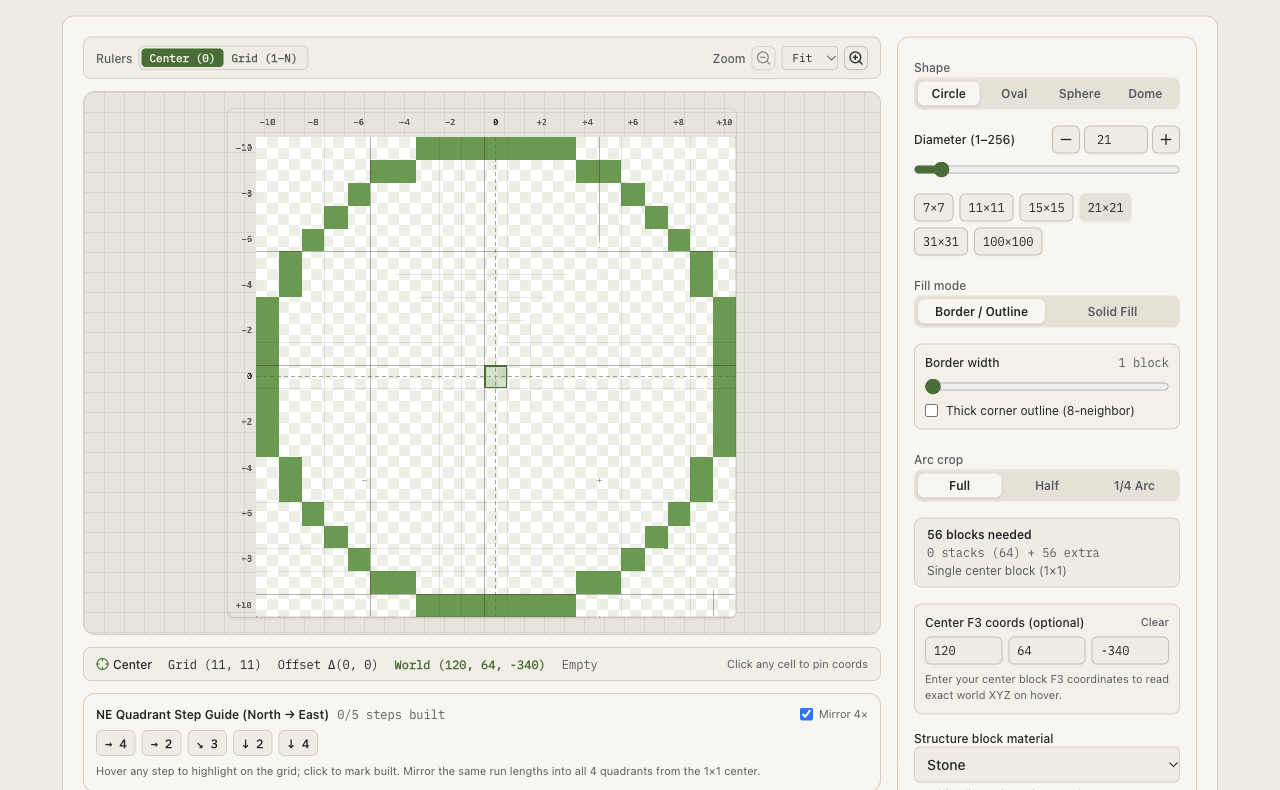
1. Pick Odd (1×1) vs Even (2×2) Centering
Choose an odd diameter like 15, 21, or 31 when you want a single 1×1 center block for beacons, single-block spire finials, or 1-wide doorways. Choose an even diameter like 16, 20, 50, or 100 when aligning double doors, 2-wide bridges, or 16×16 chunk boundaries around a 2×2 center seam.
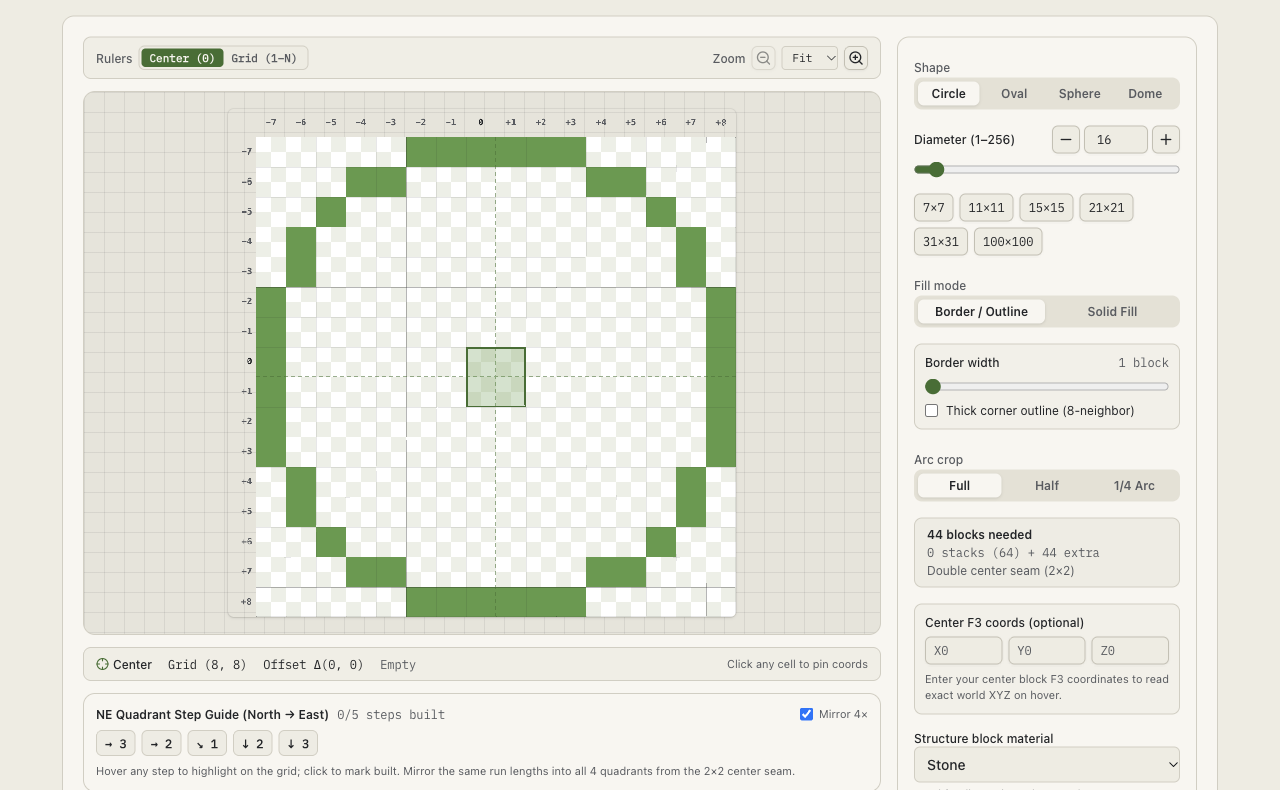
2. Lock All Four Cardinal Anchors with F3 Coordinates
Stand on your build center in-game, place a temporary contrast block (such as wool or dirt), and switch the generator rulers to Center (0). If you are laying out a mega circle such as 100×100, type your in-game X, Y, Z into Center F3 coords—hovering or clicking any block on the grid immediately shows its exact World (X, Y, Z) coordinate.
Build the north, south, east, and west cardinal edge runs first so your outer diameter is locked before placing any diagonal steps.
3. Mirror the NE Quadrant Circle Guide
Instead of counting individual coordinates block by block, read the NE Quadrant Step Guide clockwise from north to east (for example → 4, → 2, ↘ 3, ↓ 2, ↓ 4 on a 21×21 circle). Hover any chip to highlight all four mirrored quarters simultaneously on the grid, and click each chip to save your build progress locally.
4. Compare Block Budgets on the Minecraft Circle Chart
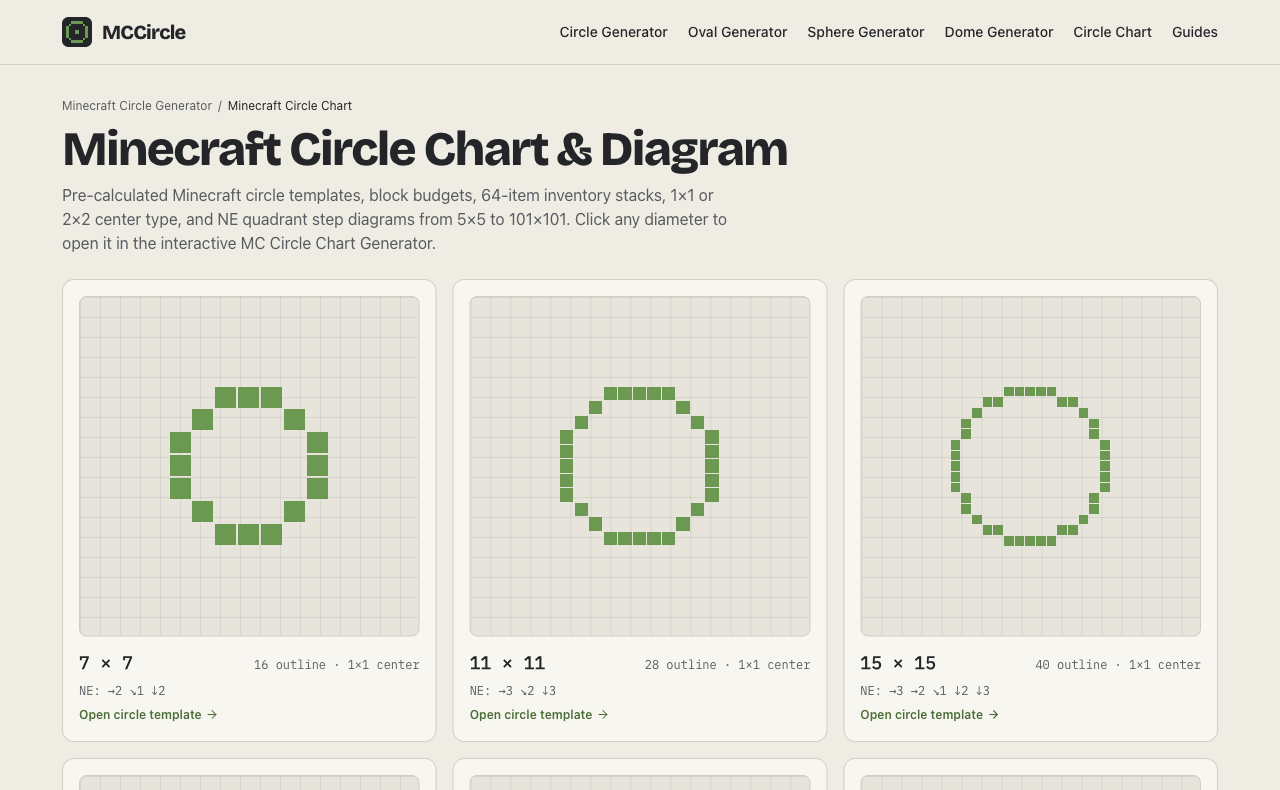
Before mining stone or smelting glass, check whether you need a 1-block outline or a solid filled floor—a 31×31 outline takes only 84 blocks, whereas a filled 31×31 floor requires 749 blocks. You can compare popular diameters and copy their NE step lists directly from the chart.
For a filled floor, choose Solid Fill in the 31×31 solid circle preset. Keep the same center and fill each row from its leftmost marked cell to its rightmost marked cell.